I’ve been moving some big files lately with Chia and with each one of the files being over 100GB, it’s hard to use the sudo mv command and then see a blank screen.
We’re going to be installing progress, a super simple command-line tool that allows you to view the status of any file transfer across Linux directories. Progress tracks different Linux commands like cp, mv, dd, tar, cat, rsync and others.
Recently I found out about a new tool that I can use (in a separate terminal) to watch the progress of the file moving with things like time and network speed.
It only requires two lines in the terminal and then a simple command to see the current progress. There is also a separate command that allows the progress to be updated every 2 seconds for a more real-time feel.
To install progress with apt, follow these steps.
FYI: using the -y command allows the installation to happen without any more actions from you after hitting enter.
sudo apt-get update -y
sudo apt-get install -y progress
Once Progress is installed, you can run a normal status update with progress -w. Make sure that if you ran your mv command with sudo privileges, you type sudo progress -w instead.
For the real-time status updates every 2 seconds, type sudo watch progress -w in a separate terminal to see updates as they happen. You will be able to track both the network speed and estimated time remaining in this window.
Make sure to check whether or not you ran with sudo. If you try to use only progress -w without sudo, you might see the following:
After install progress, it’s become a normal tool in my workflow. I can now transfer files and watch the status over on the side of my screen to start another transfer or just to see if something happened.
Sometimes directories can be long. Like really long. For example, working with Chia lately and their binaries are located in /usr/lib/chia-blockchain/resources/app.asar.unpacked/daemon/ to get the their chia command.
A symbolic link in Linux (sometimes called a symlink) is a link that points to another directory on the system. This can help shorten the amount of typing and get the user to the destination. Creating a memorable link can also help remember where the link goes.
Symbolic links are really easy to make. They use a simple command: ln.
An important part is to remember that you will need to use sudo if your user requires it.
Let’s take a look at the example I gave in the first paragraph; the directory: /usr/lib/chia-blockchain/resources/app.asar.unpacked/daemon/
For this, I’m going to make a symlink called chia that will allow me to go to that directory without typing every folder name and tabbing through.
That’s it! Now when you go to the terminal and use cd /chia it will take you straight to the directory with all of the folders you don’t feel like tabbing through.
I’ve been a Linux user for a few years and never really considered using this, but it has come in handy a few times when I really just need to save the typing space!
Samba is great to use across different platforms like Windows, MacOS, or Linux. It helps share files so users with different operating systems can access those files.
Setting up Samba requires the samba package to be installed along with a text editor like nano or vi. Setup from the command line can be done by editing the smb.conf file located in the /etc/samba directory.
Install the samba package and create the share directory
in the terminal type sudo apt install samba cifs-utils
configure the config file by using sudo nano /etc/samba/smb.conf (or your favorite editor)
scroll all the way to the bottom of the file and use something similar to the following
# my share with all the files for my stuff
[sharename]
  comment = sharename is case-sensitive
  path = /path/file
  read only = no
  guest ok = yes
restart the samba service with sudo /etc/init.d/smbd restart
create the share folder sudo mkdir /path/file
set permissions sudo chmod 0777 /path/file
Connect to a share with MacOS
Open finder
Menu >> Go >> Connect to server (cmd + k)
In the Server Address box, smb://ip-address-to-ubuntu>
Connect
Select guest and OK
You should now be able to see /path/file from here.
Connect to a share with Windows
Near the Windows Start button, use Type here to search box
type \<your-ip-address-to-ubuntu>sharename
Connect to a share from another computer running Linux
You can also use the command line to connect to this share from another Ubuntu box.
Install the cifs-utils package
Go to the terminal and use sudo apt install cifs-utils
Create the directory on this computer to connect to the share: sudo mkdir sharename
use the cifs package to mount the share: sudo mount -t cifs -o username=whoami //<your-ip-address-to-ubuntu>/sharename /sharename *note that the slashes are opposite direction from Windows.
ls into the directory if there are files there to make sure it is working
If you have created a new VD using a disk or group of disks that were previously partitioned, you may see a message like this when you try to initialize the virtual disk for LVM.
pvcreate /dev/sddDevice /dev/sdd excluded by a filter.
If filter is correct (/etc/lvm/lvm.conf) and old partition table information found on the disk, you can wipe out the old partition information with “wipefs”.
wipefs -a /dev/sdd
/dev/sdd: 2 bytes were erased at offset 0x000001fe (dos): 55 aa
/dev/sdd: calling ioclt to re-read partition table: Success
Not too long ago, I learned about the magic of the screen command in Linux. It has saved countless hours of staring at progress bars (or lack thereof) in the terminal window.
The screen command tool is used for running commands in Linux and then exiting the same open terminal to run those commands in the background. This is very useful when you need to walk away from your computer or allow commands to run for an extended period of time.
What Linux screen is used for
The screen tool can be used to run commands in separate terminal windows. Later you can resume the different screens to see live code running or things processing in the background. This can be used for things like running a crypto miner, plotting with Chia, or using rclone to move/copy files to the cloud.
How to install Linux screen
On Ubuntu/Debian, in a terminal window, use sudo apt update && sudo install screen. This will update your repositories and install the screen tool.
How Linux screen is used
The simplest way to use the command is to simply type screen. This will open a new screen window and allow you to type commands further.
My favorite way of using it is to just add screen to any existing command. i.e. screen rclone move ... ... -P and then let it run
Resuming a screen session
I had trouble with this in the beginning. It should have been self-explanatory, but took some getting used to.
Type screen -r to list any current sessions. To get into a specific screen, type screen -r ##### with the number signs being the right one.
nick@canary:~$ screen -r
There are several suitable screens on:
        32032.pts-3.canary      (07/06/2021 01:02:24 PM)        (Detached)
        26562.pts-3.canary      (07/06/2021 12:52:47 PM)        (Detached)
Type "screen [-d] -r [pid.]tty.host" to resume one of them.
nick@canary:
How to exit [detach] a screen session
While in a screen window, use Ctrl + A then Ctrl D. This takes you back to your main terminal.
Leading up to today, we have blended the internet with things in our life digitally with websites, digital media, and an online presence. Mixing in the physical layer starts a new era and is today’s question: just what is the internet of things?
The internet of things is the connectedness of physical objects around the world that are networked with the internet. Any “thing” can be a vehicle, sensor, appliance, or another connected device that would help make up a future of smart cities and a connected world.
Note: throughout the article, I’ll write internet of things, IoT, or just iot as a shorthand.
How Does the Internet of Things Work?
The meaning behind IoT is meshing the tangible and the virtual. Physical devices that can be touched and practically any object is iot-capable. Even the simplest of things can be iot; like a flameless candle that can be controlled by an iot remote.
Comparison of the internet and IoT
Similarities between IoT and the internet exist. For example, the internet is a networked system of computers. IoT is a network of physical devices that communicate with computers or interfaces acting kind of like a middleman.
Practical Use Cases and IoT Applications
washer and dryer – possible iot appliances
Example 1: appliances like a washer and dryer set up for notifications. Think about receiving a text or push notification that your load of laundry is done.
light bulb – internet of things
Example 2: how about having a color-changing light bulb turn to blue when it is going to rain the next day. This is the beauty of connected devices. And yes, this was actually an automation setup in my home at one time.
Example 3: electronics like a TV, air purifier, fan, electric griddle or coffee maker can be turned on and off (along with power consumption tracking) along with other smart devices.
using a coffee maker for iot
Example 4: an iot alarm clock. Once your alarm goes off in the morning and the snooze button is pressed, it sends data automatically to turn the kitchen lights on, dim the family room lights, and start the coffee maker.
The cool thing is that WiFi is not required for all devices, they can be controlled via Z-Wave or Zigbee. I won’t go into detail about Z-Wave or Zigbee now, but later in the post. Think of them as an alternative to a home data network connection, also known as an internet protocol (no internet though).
What is the Internet of Things: Deep Dive
Let’s talk more about how iot is now being made possible. Think about the objects that you interact with every day — the coffee maker, television, security alarm sensors, a motion sensor, your Christmas tree lights (yep!), and even simpler items like lamps, your fridge, or a garage door.
Human intervention has been the bottleneck
Some internet-connected devices have to be manually controlled or set up and devices that aren’t iot are not typically based on real-time results. In order to set up an automation or gather data, the user (you) must program a sensor or other objects to make it work for a situation in the future.
Triggers now start with IoT sensors
The internet of things movement does revolve a lot around sensors. Things like motion sensors, door sensors, and temperature sensors open the door (pun intended) for other connected devices to play along.
motion sensor could be used for internet of things
People can use existing sensors or add new sensors to their home, vehicle, or somewhere else. If devices like a smart car can connect to the internet, it can be considered an iot device.
Internet of things security devices mixed with machine learning
Security systems have had these sensors for years, so that’s nothing new, what is new though is how the systems are now internet enabled. For instance, if your alarm system detects motion, the internet can provide machine learning against what a person is and report back to scan the security cameras for what a “person” object looks like.
What Does “Thing” Mean In IoT?
A thing in easy words could be defined as any device (physical or virtual) that can be assigned an IP address. It can also transfer data over a network and allow a connection to the internet.
The term internet of things will more often encompass physical devices though, ones that a person interacts with daily. IoT platforms can eventually be a coffee table or nightstand. Startups like Knocki already make this possible.
A thing, in reality, could be any object with internet connectivity. The phrase internet provides the thing a way to share data around the globe.
Power and Energy of IoT Devices
Normally, internet connected devices will take a lot of power to stay up-and-running. With newer technology on the rise, a new type of wireless connection protocol was needed.
Since most IoT devices are portable and use batteries, it isn’t convenient and it doesn’t make sense to manage changing out batteries for power often. Instead, reducing the amount of energy consumed makes the internet of things much more plausible.
Low energy consumption thanks to IoT wireless protocols
With the benefits of Z-Wave and Zigbee, this opens the opportunity for low power use. Normal Wi-Fi can consume smart devices power up to 50x more than a protocol like Z-Wave.
With new wireless adapters, IoT can be added to existing appliances to lower energy use. I was able to add a multipurpose sensor to our dryer door in order to detect when the laundry was done.
Endless possibilities were just created when I could simple take the data from the new IoT dryer door (open, closed, vibration) and trigger a light or notification on my smartphone.
One of the best applications I’ve heard of so far was to have a colored LED bulb turn red in the evening to show that a load of clothes were still in the washer. Pretty clever!
This is the future of smart homes.
Constant data monitoring with low power technology
The type of data that iot has access to is constant, so graphs, charts, and more can be created. Data analytics are going to be the norm when it comes to energy monitor.
Real-time energy use on a network can be eye opening. It leads to find the energy monsters around a home. The Sense device uses an existing electrical breaker panel and communicates back any home electrical devices and how much they are using – accurately!
The microwave, water heater, heat pump, and other high consumption devices get reported to a dashboard that shows watts being consumed. And yes, they offer an IFTTT integration to sync other smart home devices together.
Practical Use Cases of IoT for Companies
Another practical use for iot sensors is the ability to notify a human about interrupted business operations. They are tiny computing devices with the possibility of big data. Isn’t that an oxymoron?
Example: Let’s say a business has a data center full of computers. An iot water sensor connected to the internet (running on a battery) could be placed on the floor at that location to send alerts for a water leak.
Businesses are looking for real-world scenarios to use IoT. Everything from ways to collect data, low power consumption, and artificial intelligence will provide information to users, customers, or employees.
IoT in the Medical and Healthcare Industry
IoT is now connected to the health monitoring devices as well to assist in the field of medicine and health care. These include blood pressure monitors, heart rate monitoring devices, electronic wristbands and advanced hearing aids.
hospital bed w/ network connected medical device
Some hospitals are using smart beds as well. These beds have sensors that can detect whether they are occupied or the patient is trying to get up.
Internet of things is not only limited to the field of healthcare. It could involve transportation, agriculture, environmental monitoring and many others as well.
Agriculture and Transportation with IoT
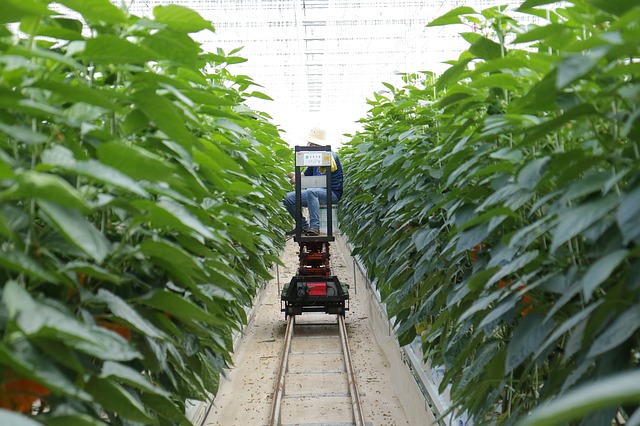
Farmers can detect through mobile apps which land is already cultivated, the quality of soil, humidity, wind speed, rainfall, temperature and other soil conditions.
smart farming with iot and data
They might even determine whether a plant is sustainable in a certain climate.
Transportation when provided with smart devices would become much easier. Features like smart or online toll collection and smart parking would make it much more fun.
It should be accepted that IoT is a revolution and not falling into the evolution category. It is instilled in the life of humans rather than becoming another technology craze.
Security & Privacy Around the Internet of Things
Information that is sent with iot devices travels across many different platforms like SmartThings, IFTTT, and websites. These sites need to be encrypted at a minimum to provide protection for IoT connected devices.
Data privacy can be a risk with any IoT real time data
Having the internet connected to such a wide range of objects also begs the question of privacy. After all, if an app can detect if my front door is unlocked or not, isn’t that dangerous for me and my family?
Data privacy is a big concern when it comes to IoT. Companies are constantly on the lookout for vulnerabilities and breaches that could happen inside any technology that allows a connection to the internet.
In simple terms, anything connected to the internet is a risk.
What Is The Aim of IoT?
Internet of things aims to connect the entire physical layer. When the internet started, it created a “virtual” environment where you could make changes online.
Think about the devices at home — your coffee maker, lamps, electronics, and appliances. Basically anything that can be plugged in will be controlled with IoT.
Applications Of IoT: Consumer Uses
A considerable portion of IoT devices are now being manufactured for consumer use. Since IoT aims to help the human race, there are many devices being introduced in the market that are centrally controlled.
Home automation with the internet of things
This term is another synonym of Smart Home. It requires a main controller, also called a hub. One example of an iot controller is the SmartThings hub. This provides users with central control for iot smart devices.
IoT Smart Devices with Disabled and/or Elderly
One of the purposes of an IoT smart home is to provide the disabled and elderly people with help and assistance. While home, they can speak to digital assistants like a Google Home or Amazon Alexa. With built-in voice sensors, iot devices can ping each other to send out data.
Users who have sight and mobility disabilities can use IoT home devices with a voice command. They can control any of their internet of things devices without the need to touch or see them. This provides a complete iot system for accessibility friendly applications.
Eventually, there will be services helping with IoT device installation. Think about nursing homes with the ability for sensors to alert staff that something has happened.
Many other features can be introduced, for example, those with sight limitation could be provided with a sensor that detects something like falls and seizures. When a notification is triggered, the caretaker, nurse, or any other family member could rush to them from the alarm.
What is the difference between IoT and the internet?
IoT devices use a different protocol than smartphones and computers that connect via Wi-Fi. The Z-Wave and Zigbee protocols allow for smaller data amounts to be used, resulting in lower power consumption.
What is the purpose for the internet of things?
The internet of things is driven behind one concept. Any device can be connected to the world. All of the connected devices can then communicate with one another and turn triggers into actions.
Who coined the term internet of things?
The term internet of things was coined by Kevin Ashton of Proctor & Gamble in 1999. It took the next 10 years for Kevin Ashton to see his IoT idea starting to gain attention in the consumer marketplace.
If you happen to be a Siteground customer, they have a great tool to make this happen. Head to your Siteground dashboard > Site Tools > SITE > File Manager.
Go to the public_html folder and right-click on .htaccess; choose Edit. Don’t forget to save your edited file!
RewriteEngine On
RewriteCond %{HTTP_HOST} ^www.domain.com [NC]
RewriteRule ^(.*)$ http://domain.com/$1 [L,R=301]
The process is straight forward too. For the first step, enter your old url. This is a relative url which doesn’t include your domain name. i.e. /old-blog-post
/old-blog-post
Then, put in the new link that you will be redirecting users to. Also a relative url.
/new-blog-post
Look in the last box that says, “Copy this Rule in to .htaccess file”. Take this exactly as you read it and place it in the beginning of the file.
<IfModule mod_rewrite.c>
RewriteEngine On
Redirect 301 /old-blog-post /new-blog-post

</IfModule>
How to Redirect from HTTP to HTTPS
Take the following code and insert it into your .htaccess file. This will take any link with the slug and change it from an http (non-secure) to https (secure) page.
These are really the only two options in my world. It makes things simple and since I’m a black and white thinker anyway, picking one or the other is easier to decide.
Here’s the difference between how they work.
a 301 redirect is seen a permanent, not going to change.
a 302 redirect is used for something temporary that may change in the future.
Sometimes when you need a quick speed test, using command line can be the fastest.
It will take the overhead of anything like HTML, CSS, or Javascript out of the equation. Follow these simple steps to install the speedtest.net command line tool into your version of Linux.
Linux Speed Test Steps from Command Line
sudo apt install speedtest-cli
After this operation, 85.0 kB of additional disk space will be used.
Get:1 http://deb.debian.org/debian stretch/main amd64 speedtest-cli all 1.0.0-1 [19.1 kB]
Fetched 19.1 kB in 1s (11.5 kB/s)
Selecting previously unselected package speedtest-cli.
(Reading database ... 106147 files and directories currently installed.)
Preparing to unpack .../speedtest-cli_1.0.0-1_all.deb ...
Unpacking speedtest-cli (1.0.0-1) ...
Processing triggers for man-db (2.7.6.1-2) ...
Setting up speedtest-cli (1.0.0-1) ...
Run speedtest-cli after the install
nickhenryhousehold@penguin:~$ speedtest-cli
Retrieving speedtest.net configuration...
Retrieving speedtest.net server list...
Selecting best server based on ping...
Hosted by BridgeMAXX (Indianapolis, IN) [56.60 km]: 9.227 ms
Testing download speed................................................................................
Download: 64.38 Mbit/s
Testing upload speed....................................................................................................
Upload: 34.53 Mbit/s
nickhenryhousehold@penguin:~$
I’ve tested this on Debian Stretch and it worked flawlessly!